

chaos
-
Posts
2,024 -
Joined
-
Last visited
-
Days Won
57
5 Followers
.thumb.png.f246c1ef886ca6288c54dd426750111e.png)
Recent Profile Visitors
24,854 profile views




chaos's Achievements






-
The RNG function needs a value sent to it and returns a result. In the Hot/Cold thread, you are only changing the value being sent to the RNG function for Hot/Cold. The RNG function has 2 different ways it can be used: - Sending it a value, and it will give a result of (- value <= result < value) - Sending it a value and it will give a result of ( 0 <= result < value) Hot/Cold uses the first way, Checking is using it the second way. The RNG function is used all over the place.
-
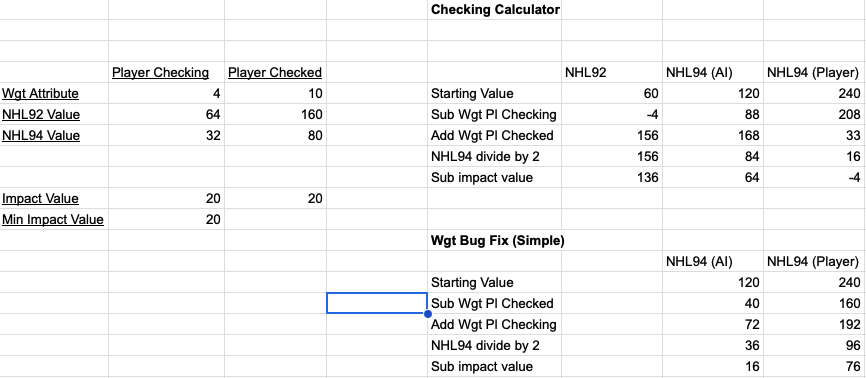
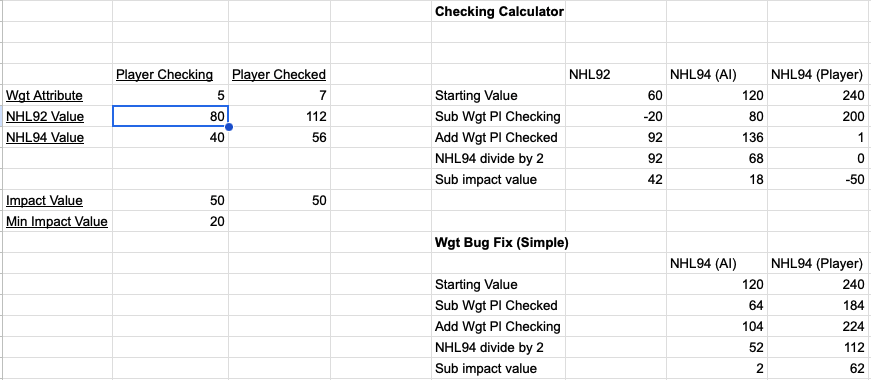
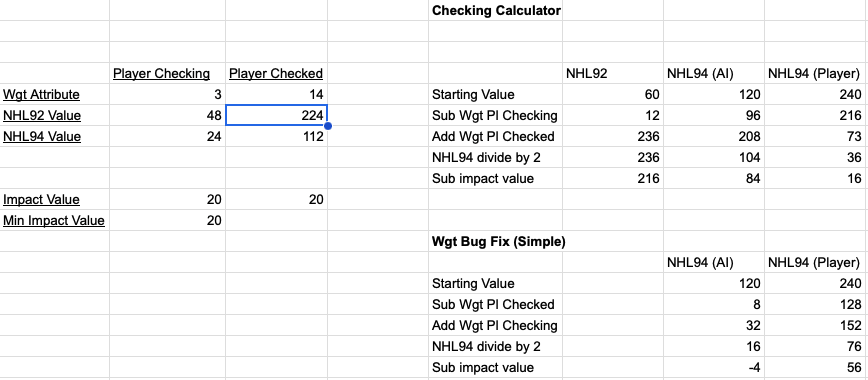
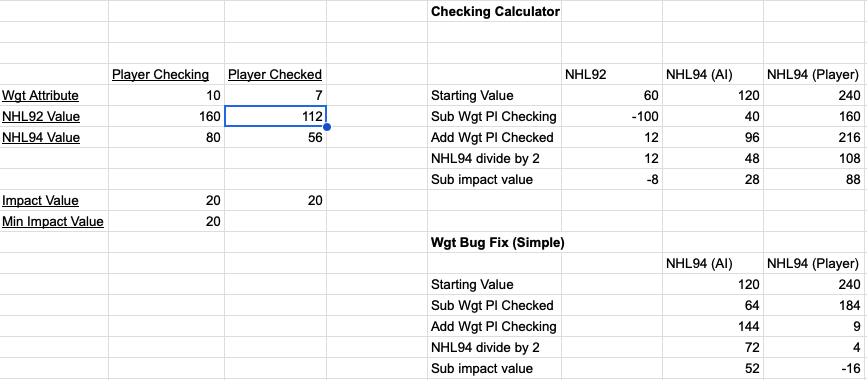
For those who don't want to watch me ramble for over an hour on my stream (btw stream is here - https://www.twitch.tv/videos/2120586640) Using the source code from 92 (Link - NHL Hockey Source Code), we are now able to find out how things work a lot easier than finding a needle in a haystack like we had done in the past. NHL94 has improved upon 92, but much of the code is the same (with some refinements and added things, like bonuses). The most important thing is we have an idea how the RAM is laid out (basically all the variables for the game). How does checking work in 94? Weight is involved. Where you are on the rink is involved (You're getting checked against the boards? You're getting knocked down). Checking rating is involved. Also, impact value is involved (how hard you are hitting depending on your velocity and your opponents velocity, and the distance between the 2 of you). Are you controlling the player checking, or is the AI? Also, the weight bug (lets lighter players check heavier players, regardless of a lot of factors above) - Here's the checking formula for 94: Check if checking player is in checking animation If impact value is more than 20 decimal, the check will initiate. If not, there will only be momentum transferred between the 2. Starting value for calculation (120 decimal or 240 decimal if player controlled) - Subtract (Wgt * 8) of player checking - Add (Wgt * 8) of player being checked - Divide total by 2 - Check if player will hit the wall (see below) - Subtract impact value - If the total is 0 or negative, proceed to knock down. - If total is positive, then check if player will hit wall. If he will, proceed to knock down. - If total was positive, and player is not near a wall, then randomize the result from above (the RNG will choose a number >= 0 and < result from above) - Load the checking attribute (which is Chk rating * 5 + bonuses (Hot/Cold and 3rd Period Bonus). Divide it by 2 (Value will be between 0 and 15) - Next, subtract Checking value from above from the RNG result. If the answer is <= 0, then proceed to knock down. If positive, then check Agression attribute and see if there will be a penalty from the hit. Knock down section also checks for penalty from contact, but there is slightly less of a chance of a penalty compared to them not getting knocked down. After this part of the code, it will check for toddle (related to stickhandling). This checking formula is almost the same as it is in 92, except for the fact that some math is different (there's no bonuses, attributes are on a 0-15 scale instead of 0-6), the starting value for ALL checks is 60 decimal. In 94, the attributes are stored in RAM with a 0-30 scale (which is why you see a divide by 2 in a few places here). What's the weight bug problem? Lighter player can check heavier players with ease, when player controlled. This is because of the large boost given to the starting value. The subtracting and adding of the weight in this formula is done "byte" size, which means that value can never be over 255, it will overflow and 256 = 0 (it will start over at 0). Because of this, the rest of the calculation is pretty much thrown out the window (impact value will play a very small role in a weight bug check). So how to fix the weight bug? Remove the boost to the starting value when player controlled. I believe this may have been left in during testing, since the formula itself is almost the save as in 92. If the starting value was set to 120 decimal for both AI and player controlled checks, we would see much more "realistic" results. Weight difference won't be a huge factor anymore (still a bit of a factor), but impact and checking attribute would play more of a role. What's impact value? This is something I was able to figure out using the source code. The game tracks the velocity of the players (speed + direction). When it senses 2 players are close enough for contact, it will calculate a transfer of momentum between the players (when players hit, they slow down, bump each other back, etc). So it will calculate impact based on the velocity of both players, and the distance between them. The players speed is controlled by their acceleration, which in turn is controlled by Wgt and Agl attributes. So the faster a player is going, the more impact they will cause. If 2 skaters are skating at each other, the impact will be higher. If a player getting checked is skating away from the checker, the impact will be lower. If you hit the player near the end of your speed burst, the impact may be lower (not going as fast as you originally were). Funny thing is even with the weight bug, its actually harder for Theo Fleury (3 wgt) to check Marty McSorley (14 wgt), than it would be for him to check someone like Mats Sundin (7 wgt). He needs some impact to check Marty, where as with Mats, as long as he meets the minimum impact value to initiate the checking calculation, hes knocking him down. Here are some examples with weight and impact: 4 wgt checking (player controlled) a 10 wgt with minimal impact just makes it to the knock down phase (-4). 4 wgt AI player can do it with a ton of impact though (and some RNG luck). Closer weights here. 5 wgt AI checking a 7 wgt player with 50 impact value can definitely have a shot with some RNG luck (RNG result would be between 0 and 18 here), then subtracting the Checking attribute (0-15 scale after divide by 2). Marty McSorley might be able to survive this check from Theo Fleury with the right RNG and minimal impact. AI controlled Mario Lemieux might struggle knocking down Mike Gartner with low impact. Gotta get a good RNG roll (low value here).
-
The game limits it to 6. And actually 6 is 108 I believe, not 99 (thats the highest it will display). So increasing past 6 won't do anything, theres a hard limit.
-
A League Champs: S1: Uncle Seth S2: angryjay93 S3: Uncle Seth S4: kingraph S5: angryjay93 S6: Uncle Seth S7: Corbettkb B League Champs: S1: sonoffett87 S2: hokkeefan2 S3: Tickenest S4: szpakman S5: kazelegend S6: Wittgenstein S7: INDIO * (replaced skankhunt42) C League Champs: S2: INDIO S3: TecmoDPS S4: Charlesworth S5: Big Valboski S6: skankhunt42 S7: SOH Draft Cameos: S2: Jeremy Roenick S3: Luc Robitaille (no show) S4: Russ Courtnall S5: Teemu Selanne S6: None S7: None CDL Season 8 I plan on starting this league in a few weeks. I will give a week, starting 1/19/24 for S7 players from A, B, and C Leagues to let me know if they are returning. Once the week is done (or I've heard from everyone), there may be some open spots. Open spots in A will be filled by previous A league caliber players (ones who have played in A and still qualified to stay in A), or I will do a play in of sorts from top B teams to determine replacements (though I doubt we will need this). Open spots in B will more than likely be filled by C league players from S7, with a play in as well. This all depends on who signs up. There may be exceptions to the rule (where someone of B quality returns, they would participate in the play-in as well). Note, the only thing holding up the draft will be A and B signups. Once this is figured out, I will announce the start of the draft (along with the draft order). Post Draft show participants is TBD at this point (hopefully the usual 4). C league signups will be open up to the day of the A/B League Draft, and are open to anyone. Current league cap is 24. This may change, depending on signups. C league signups will be limited to the number of A/B league teams. Relegation and Promotion The criteria is still the same. Last season we had 12 teams in A, and 12 in B. 2 players from A will be moving down (worst reg season record, not counting the fill-ins), 2 players from B will be moving up to A, and another 2 moving down to C, and at least 1 player from C will be moving up to B (the other will either be the top reg. season winner, or the result of a play-in). As of right now: Moving up to A - INDIO (B Champ) and Brutus (.682 win PCT) Moving down to B - Wittgenstein (.227 win PCT) and an open spot (Thrillhouse was replaced, he is not eligible to play this season) Moving up to B - SOH (C Champ) and possible play-in (currently dangler with a .800 win PCT) Moving down to C - BigVal (.295 win PCT) and skills324 (.273 win PCT). If there is a play-in for B, Big Val will be allowed to play. Again, this could change, depending on who is returning, signing up, etc. There could be more movement. Sign-ups C League is more of like a "farm" league, where coaches will choose (via a Team Selection Draft) one of the drafted A/B teams to play a season with, continued with a playoff. The C Champ and the team with the best reg. season record will be promoted to B league the following season, and allowed to partake in the A/B draft. This league is geared more towards the guys who are more novices at the game, especially draft leagues. They can choose a team during the Team Selection Draft that fits their abilities. C is open to any player whose setup has been CONFIRMED to work (they will have a role assigned to them in Discord). Sign-up deadline will be the day of the A/B League Draft, and cannot exceed the total amount of A/B teams (currently 24). League spots are for CDL7 returnees first. Empty spots in A and B will be filled by my choice; see first paragraph. Draft News Once A/B returnees all report, and I fill out the remaining spots, I will post the draft order. The draft order will use the previous season's record as a base. The A champ will pick last in the list, the B champ will pick 18th, and the 2nd promoted player from B will pick 15th. The 2 teams from A that were relegated will pick 16th and 17th. The rest of the selections will go by winning pct and playoff performance from CDL 7, regardless of A or B league. As far as the draft show, we will do a post A/B draft show, analyzing the teams and hopefully giving some insight that can help the C league players before their Team Selection Draft. League Info The ROM will not change from S7: - 5 min periods, 10 min OT, 1 min Penalties - Quicker control and longer range of Goalie - Goalie stat boosts (+1 to agl, +1 to each Stk/Glv attribute, excluding Roy and Belfour) - 0 Team Bonuses and PP/PK bonus - Warm/Cool Bonus (very slight hot/cold, attributes in the Edit Lines screen will be accurate) - Small Home Team Bonus in the Playoff ROM (+1), to make home ice a little more meaningful. - Reduced Penalty Shot timer Rules Warning! There are glitches in the game. A majority of them are unavoidable. Some of them are able to be triggered. In this league, anything goes. If a glitch causes a goal against you, you are free to talk about it with your opponent and decide an outcome, and come to an agreement. But there is no rule stating they have to reciprocate the goal. Double penalty shot? Play to the whistle. Next time blow your opponent out if he does something to piss you off. One rule regarding pulling the goalie - It must be done while having possession, or before a faceoff in the offensive or neutral zone. Let me know if you are returning or not, by posting below, or in this Discord thread - CDL8 Signups and Returnees. If I don't hear from you, I will assume you are not returning. List of returnees:
-
 @INDIO made a 30 team Classic ROM using wboy's base. Reverted everything back to classic 94. Probably the best ROM to start out with, as it is classic 94 in the 30 team ROM format. Graphics are decompressed already.
 -
NHL94 Genesis ROM Image Updater version 0.2 This Python app will take image assets supplied, and import them into a Genesis NHL'94 ROM. It can also export the image assets from a Genesis NHL'94 ROM and store them in byte arrays. It is useful for exporting assets from a previous ROM and importing them into a new one. The app is designed to either update or export the following image data: Team Logo and Palette Team Rink Logo and Palette (also the Home Jersey Palette) Team Away Jersey Palette Banner and Palettes NOTE: The image data is in byte format. It can't be opened in any program other than a text editor. There are 2 options to use: Before running, please make sure the team names and rosters are already set in the ROM!! Extract Images Choose a ROM, set the number of active teams, and click the Extract Images button. The app will output a folder with the ROMs name containing image assets for each team (listed by team abbreviation). Import Images The program will use the image asset data located in the import folder (listed by team abbreviation). It will only import the image assets that are present in the folder, and the program will notify you of which teams in the ROM were updated, and which were not. Once done, it will ask you for a location and a name to save the modified ROM. Workflow: 1 - Create a new ROM and set the rosters and team names using NOSE or similar. 2 - Find the ROMs that have the image assets you would like to use in your ROM. You can find many ROMs on the forum from this post, or by looking in the league section of the forums - 3 - Start the app. Load the ROM, and click export. A message will pop up once complete. Look in the app's folder to find a folder with the ROMs name. Inside, each team's image assets will be separated in a folder with the respective team abbreviation. Continue exporting other ROMs if needed. 4 - Add the team folders you wish to use to the import folder located in the app's main folder (if there is no import folder, create a new folder with the name "import" (no quotes)). You only need to add the teams that you wish to change. You can also remove the data in the team's folder that you do not wish to update (for instance, if you only want to update the rink logo and palette, leave them in the folder, and delete the other files). 5 - Load your new ROM into the app. Then, click the Import button. The app will notify you which teams were updated, and which teams were not. Then, it will prompt you to save the modified ROM. Afterwards, check in an emulator to make sure the image assets were transferred over. Zip file contains a Windows executable. You can get the source code from my GitHub - https://github.com/Chaos81/nhl94-image-updater Sorry, I've had this for over a year, and never posted it on here!!! Image_Updater_ver02.zip
-
I think DaDonch in GDL 2 drafted Dino in the 1st round and Klima in the 2nd round lol. Klima has sure climbed the ranks since the early days. I used that team in a recent league sebe set up, insanely good team.
-
Not sure it's possible right now. This would be interesting though, and I don't think hard for the RA devs to do. It's worth asking in their libretto Discord. Though it looks like the net play guy they recently got to work on it left, so who knows if anyone will get around to it.
- 1 reply
-
- 1
-

-
List of returnees:
-
A League Champs: S1: Uncle Seth S2: angryjay93 S3: Uncle Seth S4: kingraph S5: angryjay93 S6: Uncle Seth B League Champs: S1: sonoffett87 S2: hokkeefan2 S3: Tickenest S4: szpakman S5: kazelegend S6: Wittgenstein C League Champs: S2: INDIO S3: TecmoDPS S4: Charlesworth S5: Big Valboski S6: skankhunt42 Draft Cameos: S2: Jeremy Roenick S3: Luc Robitaille (no show) S4: Russ Courtnall S5: Teemu Selanne S6: None CDL Season 7 I plan on starting this league in a few weeks. I will give a week, starting 05/24/23 for S6 players from A, B, and C Leagues to let me know if they are returning. Once the week is done (or I've heard from everyone), there may be some open spots. Open spots in A will be filled by previous A league caliber players (ones who have played in A and still qualified to stay in A), or I will do a play in of sorts from top B teams to determine replacements (though I doubt we will need this). Open spots in B will more than likely be filled by C league players from S6, with a play in as well. This all depends on who signs up. There may be exceptions to the rule (where someone of B quality returns, they would participate in the play-in as well). Note, the only thing holding up the draft will be A and B signups. Once this is figured out, I will announce the start of the draft (along with the draft order). Post Draft show participants is TBD at this point (hopefully the usual 4). C league signups will be open up to the day of the A/B League Draft, and are open to anyone. Current league cap is 24. This may change, depending on signups. C league signups will be limited to the number of A/B league teams. Relegation and Promotion The criteria is still the same. Last season we had 12 teams in A, and 12 in B. 2 players from A will be moving down (worst reg season record, not counting the fill-ins), 2 players from B will be moving up to A, and another 2 moving down to C, and 2 players from C will be moving up to B. As of right now: Moving up to A - Wittgenstein (B Champ) and Charlesworth (.693 win PCT) Moving down to B - hokkeefan2 (.307 win PCT) and INDIO (.318 win PCT, lost the 4 way tiebreakers) Moving up to B - skankhunt42 (C Champ) and skills324 (best reg. season record - .868 win PCT) Moving down to C - bvish (.205 win PCT) and Mr. T (.364 in PCT) Again, this could change, depending on who is returning, signing up, etc. There could be more movement. Sign-ups C League is more of like a "farm" league, where coaches will choose (via a Team Selection Draft) one of the drafted A/B teams to play a season with, continued with a playoff. The C Champ and the team with the best reg. season record will be promoted to B league the following season, and allowed to partake in the A/B draft. This league is geared more towards the guys who are more novices at the game, especially draft leagues. They can choose a team during the Team Selection Draft that fits their abilities. C is open to any player whose setup has been CONFIRMED to work (they will have a role assigned to them in Discord). Sign-up deadline will be the day of the A/B League Draft, and cannot exceed the total amount of A/B teams (currently 24). League spots are for CDL6 returnees first. Empty spots in A and B will be filled by my choice; see first paragraph. Draft News Once A/B returnees all report, and I fill out the remaining spots, I will post the draft order. The draft order will use the previous season's record as a base. The A champ will pick last in the list, the B champ will pick 18th, and the 2nd promoted player from B will pick 15th. The 2 teams from A that were relegated will pick 16th and 17th. The rest of the selections will go by winning pct and playoff performance from CDL 4, regardless of A or B league. As far as the draft show, we will do a post A/B draft show, analyzing the teams and hopefully giving some insight that can help the C league players before their Team Selection Draft. Uncle Seth, as A champ, has been assigned to get the Cameo for the draft show. Since AJ missed on the previous Cameo, we can try and do 2 for this show, 1 for AJ, 1 for Seth. League Info The ROM will not change from S6: - 5 min periods, 10 min OT, 1 min Penalties - Quicker control and longer range of Goalie - Goalie stat boosts (+1 to agl, +1 to each Stk/Glv attribute, excluding Roy and Belfour) - 0 Team Bonuses and PP/PK bonus - Warm/Cool Bonus (very slight hot/cold, attributes in the Edit Lines screen will be accurate) - Small Home Team Bonus in the Playoff ROM (+1), to make home ice a little more meaningful. - Reduced Penalty Shot timer Rules Warning! There are glitches in the game. A majority of them are unavoidable. Some of them are able to be triggered. In this league, anything goes. If a glitch causes a goal against you, you are free to talk about it with your opponent and decide an outcome, and come to an agreement. But there is no rule stating they have to reciprocate the goal. Double penalty shot? Play to the whistle. Next time blow your opponent out if he does something to piss you off. One rule regarding pulling the goalie - It must be done while having possession, or before a faceoff in the offensive or neutral zone. Let me know if you are returning or not, by posting below, or DM me in Discord. If I don't hear from you, I will assume you are not returning.
-
EA Sports splash screen palette is always wrong
chaos replied to Jlsegafan2001's topic in General Discussion
The page you were referencing was just the example page, you needed to go to the next page in the Screenshot PDF to get the right palette value -
EA Sports splash screen palette is always wrong
chaos replied to Jlsegafan2001's topic in General Discussion
This is the base ROM - NHL94-~1.BIN Look at this video - Tile Molester.mov -
EA Sports splash screen palette is always wrong
chaos replied to Jlsegafan2001's topic in General Discussion
That ROM says NHL All Stars 94. Where is that from. -
Welcome bud! You can always join the Discord as that's more active now than the forums. - SNES version runs at a different frame rate, so skating seems a little skippy, whereas Genesis is a much smoother experience. - If you choose to play manual goalie control, SNES has a dedicated button (X button) assigned to switch to the goalie, as compared to Genesis (you have to hold down the B button to switch to goalie). - In SNES, the team rankings are closely to their overall rating, whereas in Genesis because of something called the weight bug, which causes players lighter in weight to be able to check more effectively, the team rankings are much different. - You can take a slapshot holding down the shoot button, then letting go, or you can quickly hit it for a "wrist shot" or a "snap shot" whichever you want to call it - SNES has defense control, which you turn on in the menu before starting the game, which allows you to use the L and R button to switch to your left or right defensemen without needing to cycle through players like you would usually do with the B button (when you dont have the puck) - SNES you can exit the game at anytime from the pause game menu, whereas in Genesis you have to either wait for the game to be over, or reset the emulator - SNES game play is a little more unpredictable (shots going in that look like they have no chance, body checks succeeding are more random, lots of shots that hit the post, etc), so it seems more like an "arcade game" feel. Genesis is a little bit more predictable. There are more mods to Genesis because of how much work had been done on the ROM in the early days for hacking. SNES wasn't as popular, and since no one has figured out a way how to reliably change the team logos and stuff like that, it doesnt have much of a hacking following. Also, there's only a few ROMs who add the hacking for the goalie button in Genesis, so you just need to read and check for those. Each controller (SNES and Genesis) have different advantages. Just use the controller you like to use. A 6 button Genesis will work fine with a SNES emulator, and an SNES controller will work fine on Genesis emulator.
-
If you don't see "Download Core" in the Load Core window, go to Settings-User Interface-Menu Item Visibility and turn "Show Core Downloader" to on.